
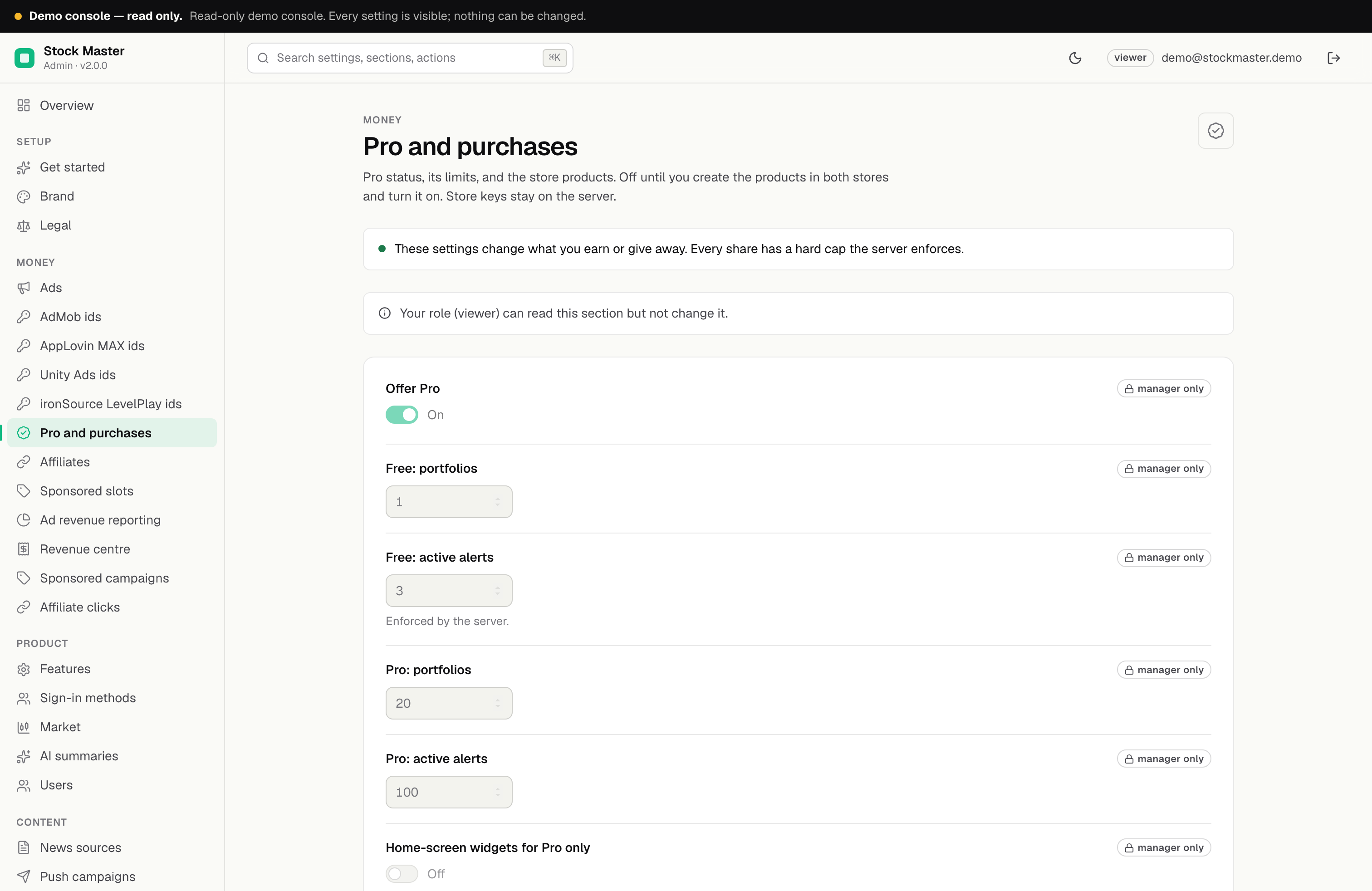
Pro and purchases
verified on the server.
Pro (monthly, yearly or lifetime), Remove ads and an AI report pack through Google Play and the App Store. Every purchase is checked with the store by the backend, and bound to the account that bought it.
01Products
| Product | Default product id | Store type | What the user gets |
|---|---|---|---|
| Pro monthly | pro_monthly | Auto-renewable subscription | Pro until the subscription's expiry |
| Pro yearly | pro_yearly | Auto-renewable subscription | Pro until the subscription's expiry |
| Pro lifetime | pro_lifetime | One-time (non-consumable) | Pro for good |
| Remove ads | remove_ads | One-time (non-consumable) | No ads |
| AI report pack | ai_pack_10 | Consumable | AI credits (10 per pack by default, 1–1000), one per AI report |
You can change every product id in the console; use the same ids in both stores. You set the prices in Play Console and App Store Connect; they are not in the code.
What Pro gives (defaults)
| Limit | Free | Pro |
|---|---|---|
| Portfolios (checked in the app) | 1 | 20 |
| Active alerts (enforced by the server) | 3 | 100 |
| AI reports per day (with AI on) | 0 free, 1 by rewarded ad | 20 |
| Ads | As configured | None |
The perks list on the Pro screen is editable (Console → Pro and purchases → Perks). Only list what Pro really gives.
02Switch it on
- Create the products in both storesWith the ids above (or your own). Subscriptions in Play Console need a base plan; in App Store Connect put them in one subscription group.
- Set up verificationGoogle Play and Apple, below. Without it the API answers
503 iap_unconfiguredand grants nothing. - Fill in the consoleConsole → Pro and purchases: product ids, AI pack size, then turn on Offer Pro and Sell in-app purchases.
- TestWith a Play license tester and an App Store sandbox account (set App Store environment to Sandbox for TestFlight, back to Production for release).
03Purchases are bound to the account
When a user buys, the app passes the account token from GET /v1/me to the store as applicationUserName (Google's obfuscated external account id, Apple's app account token). The server refuses a purchase that belongs to another account, and the app does not start a purchase at all while it has no token. The effect: a purchase made on one account cannot be restored into another account of the same device or store login. Source: app/lib/iap/purchase_service.dart.
04Restore behaviour
- Restore purchases (on the Pro screen and in Settings) asks the store for the user's earlier purchases and sends each one through the same server check. A purchase that belongs to a different account than the one signed in is refused.
- Each order is recorded once, so a repeated request never grants twice and a pack is never credited twice.
- A subscription grants Pro until the expiry the store reports; a newer verified expiry extends it. There are no server-to-server store notifications in 2.0.0: a renewal is picked up when the app sends the renewed purchase again, for example after Restore.
- Because a user starts anonymous, a user who wants to keep Pro across devices should sign in (Google, Apple or e-mail) before buying.
- In the example build purchases are simulated ("Demo — no charge") and Restore resets the sample purchases.
05Google Play verification
- Package nameConsole → Pro and purchases → Android package name (your application id, owner only).
- Option A: service account JSONIn Google Cloud create a service account and a JSON key. In Play Console → Users and permissions invite the service account's e-mail with access to the app and the permission View financial data. Paste the whole JSON into Google Play service account (JSON) (write-only; the test checks only the file's shape).
- Option B: no JSONLeave the JSON empty and invite the Cloud Functions runtime service account (shown in Google Cloud → IAM) the same way.
New Play permissions can take a while to apply. If verification fails right after setup, wait and try again.
06App Store verification
- Create the keyApp Store Connect → Users and Access → Integrations → In-App Purchase → generate a key. Download the
.p8file (only once) and note the Key ID and the Issuer ID. - Enter themConsole → Pro and purchases: iOS bundle id, issuer id, key id, and the whole
.p8contents (write-only; the test only checks that it parses). - EnvironmentSandbox for TestFlight and sandbox testers, Production for the App Store.
07Revenue records
When the store reports the price of a new verified order, the backend writes a revenue event with the amount and currency exactly as reported. It shows in the Revenue centre. Store fees and taxes are not deducted; your store payout reports remain authoritative.
Source: firebase/functions/src/api/commerce.ts, firebase/functions/src/iap.ts.